The State of Progressive Web Apps on iOS: Limitations and Workarounds
In a previous article, I extensively covered the topic of Progressive Web Apps (PWAs): what they are, the guarantees they provide to users, and the benefits for developers. I also explained how to turn your Hugo website into a PWA. However, in that piece, I carefully avoided the specific case of PWAs on iOS.
This article focuses exclusively on Progressive Web Apps for iOS. We will explore the current state of the technology, its limitations, and how to overcome them to minimize the gap in user experience compared to other devices. Finally, I will share some ideas on how to make your PWA feel as native as possible on an iPhone.
Prerequisites
Since this article focuses solely on iOS, I will assume you are already familiar with the concept of Progressive Web Apps. I also assume you have a functioning PWA for other operating systems and are now looking to optimize it for Apple devices. If that is not the case, I warmly recommend reading my previous article on this topic and checking the references provided there.
PWA x iOS: The Context
As of this writing, Apple has been somewhat hesitant regarding PWA support on iPhones and iPads. Support remains partial, and the general consensus is that Apple prefers to maintain the App Store as the primary method for installing applications.
In early 2024, the Digital Markets Act (DMA) in Europe imposed new regulations on major tech players. As a direct consequence, Apple initially removed PWA support in the iOS betas, claiming it was an intentional choice to comply with the DMA (see this article). However, a month later—following significant backlash and criticism—they reversed this decision and restored PWA support (see this article).
Although the situation has returned to normal (and this specific drama mainly concerned Europe), it gives a clear indication of Apple’s stance on Progressive Web Apps within their ecosystem.
It is worth noting that this applies to iOS and iPadOS (watchOS simply does not support PWAs), but not macOS. macOS is inherently more open; installing applications outside the App Store is common, and PWAs can be easily installed via any browser. On mobile, however, the ecosystem is more closed. Furthermore, all browsers on iOS are currently forced to use the WebKit engine, which effectively sets the ceiling for PWA functionality on the platform.
I recommend keeping an eye on this article by Maximiliano Firtman. It is regularly updated and accurately describes which PWA functionalities are currently supported on Apple’s mobile OS.
How to install a PWA on iOS
Installing a PWA on an iPhone is straightforward, yet different from other platforms. Unlike Android—which displays a native installation banner—or desktop Chrome—which shows an install button in the address bar—iOS offers no built-in mechanism to inform the user that the website is a PWA and can be installed.
To install a PWA on an iPhone, the user must tap the “Share” button (in the bottom bar on Safari, or near the address bar on Chrome), and then select “Add to Home Screen”. The app icon will then appear on the home screen and can be launched just like a native app.
Since Apple requires all browsers to use the WebKit engine, the process is relatively consistent across different browsers. Note that this browser engine requirement may change in the future, particularly in Europe, due to the DMA (source).
Installation of a PWA on iOS via Chrome Installation of a PWA on iOS via SafariHow to add a splash screen
Depending on the internet connection and the website’s performance, a PWA may take a moment to load. To enhance the user experience, it is possible to display a splash screen while the app initializes.
This website’s PWA splash screen, displayed on iOSHow it works on Android
On Android, a splash screen is dynamically generated based on the background_color property and the icons defined in the manifest.json file. I won’t go into detail here, but you can check the splash screen section of my previous article for more information.
And on iOS
On iOS, the automatic behavior found on Android does not work at all.
Instead, we have to rely on a rather rudimentary and “hacky” solution. You must add specific lines to the HTML <head> of your PWA to tell iOS which image to use as a startup screen. Crucially, this is not just an icon, but a full-screen image. Consequently, to get a perfect result, you must provide a different image for every possible screen resolution and orientation.
Below is an example of one of these lines from my website:
    <link rel="apple-touch-startup-image"
          media="screen and (device-width: 430px) and (device-height: 932px) and (-webkit-device-pixel-ratio: 3) and (orientation: landscape)"
          href="/splash_screens/iPhone_15_Pro_Max__iPhone_15_Plus__iPhone_14_Pro_Max_landscape.png">
I personally defined 34 distinct images, referenced in 34 separate lines of HTML similar to the one above.
Fortunately, there are online tools to make this easier. I used the “PWA Icons & iOS Splash Screen Generator” from progressier.com. You simply provide a source image and a background color, and it generates all the necessary splash screen images for various iOS resolutions, along with the HTML code to copy-paste. It also handles icons for the manifest. It’s an incredibly useful tool for PWAs in general, and a lifesaver for iOS support.
Shortcuts
On many platforms, you can create shortcuts to access specific parts of a PWA directly from the home screen icon (e.g., a “Force Touch” or long press on Android can show a menu to jump straight to specific articles).
On iOS, this is simply not supported yet. Even if you define shortcuts in your manifest, they will not appear when performing a long press on the app icon.
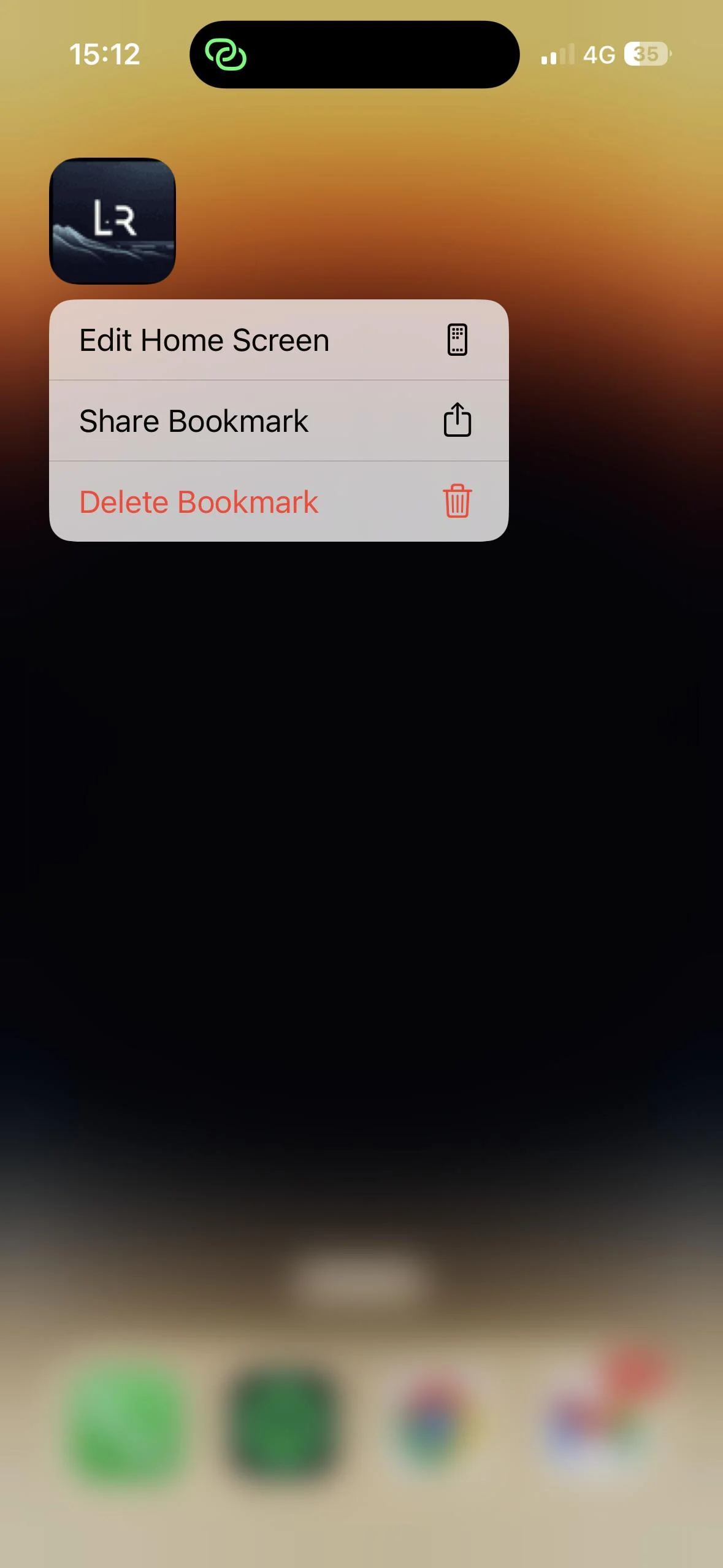
A force touch on a PWA installed on iOS does not display shortcuts
Web Push Notifications
For a long time, the lack of push notifications was the biggest deal-breaker for PWAs on iOS. However, this changed significantly with iOS 16.4.
Apple now supports the Web Push API, allowing PWAs to send notifications to users, just like native apps. There is, however, one strict requirement: the user must have added the PWA to their home screen for the notifications to work. You cannot subscribe a user to notifications simply from the browser tab; they must “install” the app first.
Once installed, you can request permission using Notification.requestPermission(). If granted, you can manage badges on the app icon (the little red dot with a number) using the navigator.setAppBadge() API, which is also supported now. This is a massive leap forward for closing the gap with native iOS applications.
Display Modes
There are four standard display modes for PWAs: fullscreen, standalone, minimal-ui, and browser.
iOS currently supports only two:
-
Browser: The app opens in the browser with standard UI controls.
-
Standalone: The app opens in its own window, similar to a native app, but the iOS status bar (battery, time, signal) remains visible.
If you set your PWA to minimal-ui, iOS will fall back to browser. If you set it to fullscreen, it will fall back to standalone.
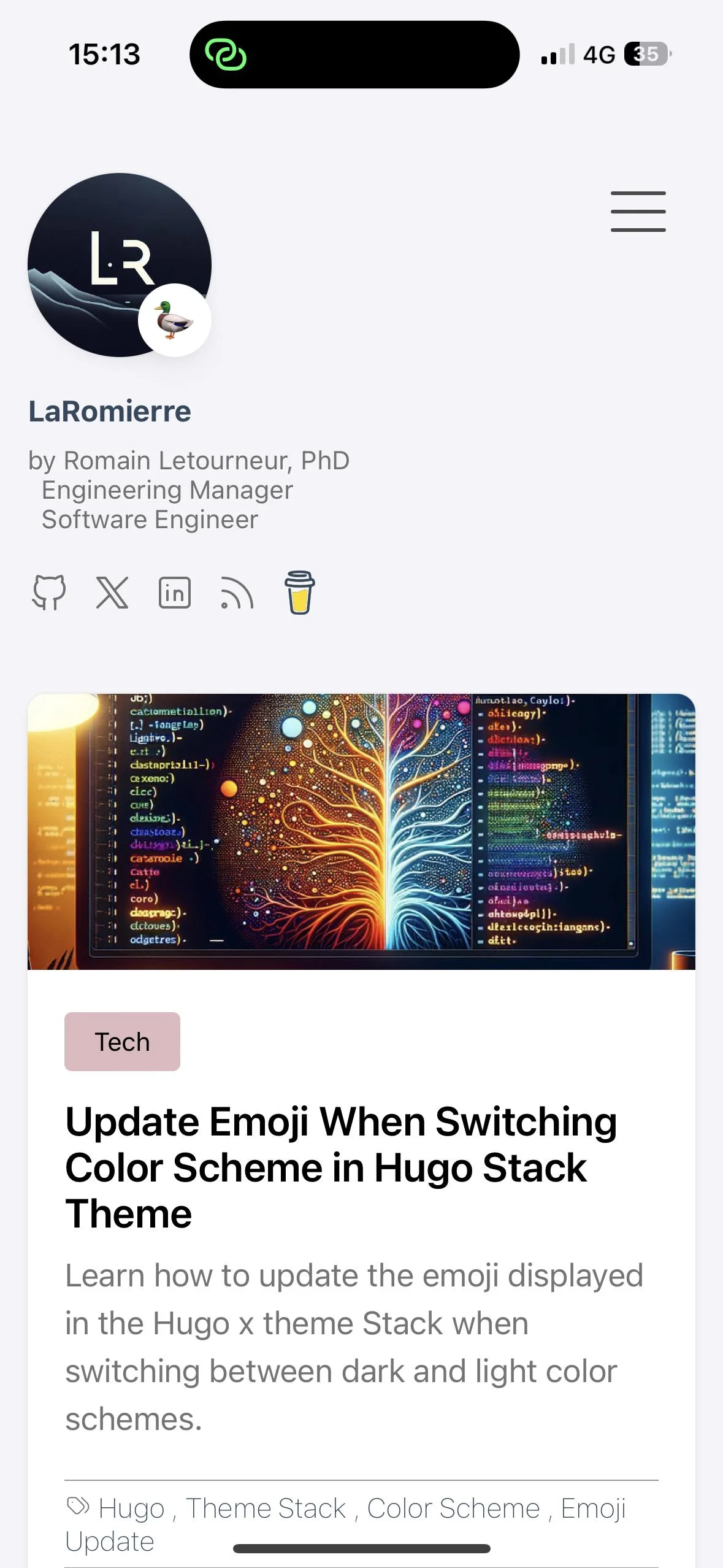
The PWA, with display set to “fullscreen”
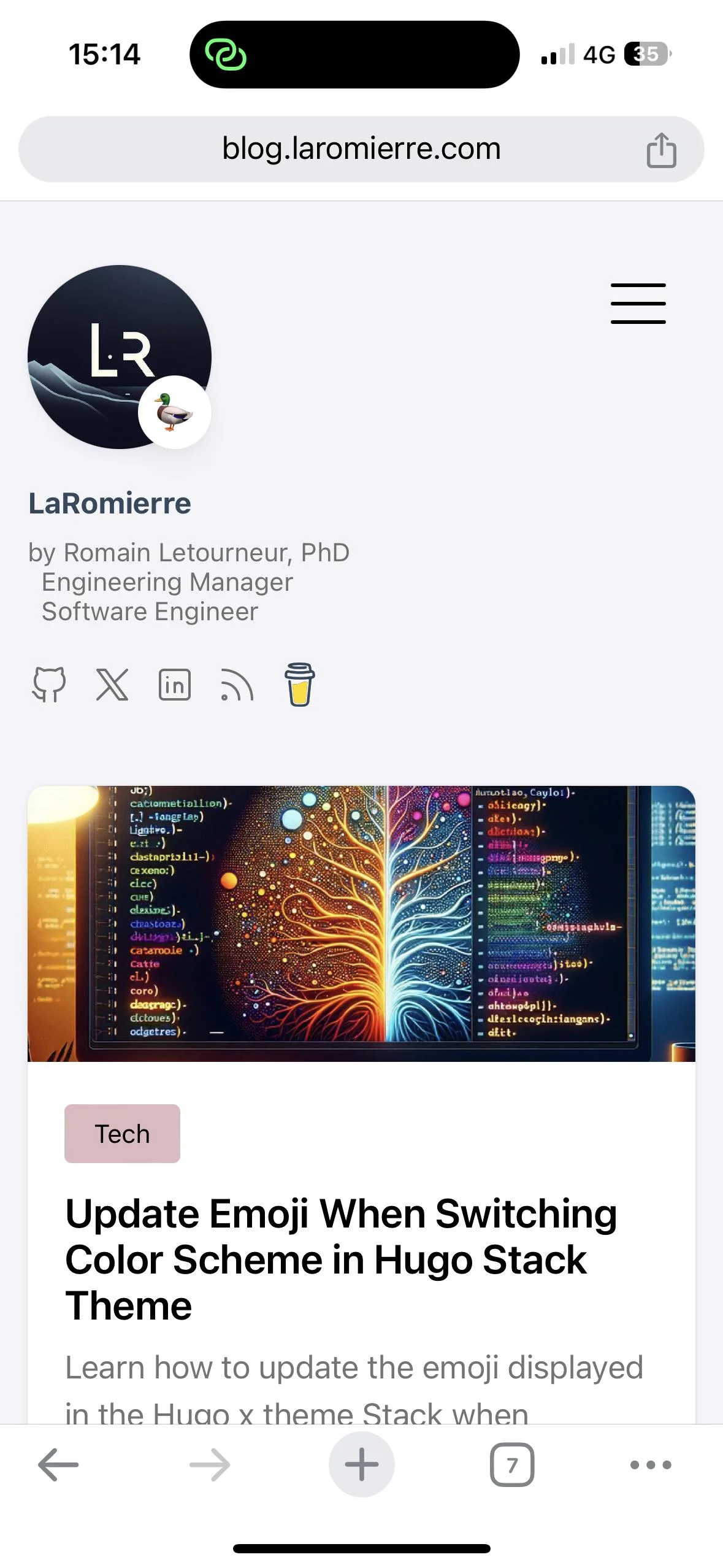
The PWA, with display set to “browser”
Icons
In addition to the splash screen issues, there is an important nuance regarding icons on iOS: currently, only PNG images are reliably supported. A good best practice is to adopt the PNG format for your PWA icons by default to maximize compatibility across all platforms.
Minimal example website
To conclude, here are a few links to guide you if you want to implement these changes on your own site:
Wrap up
While not yet perfect, the PWA experience on iOS devices is quite decent. With a few iOS-specific adjustments, the usage experience becomes nearly indistinguishable from native apps once installed.
The biggest hurdle remains the installation process itself. As of today, there is no native “Install” banner on iOS, and no simple way to prompt the user programmatically. We can hope for better support in the future, but given Apple’s protective stance over the App Store, it is unlikely to be a priority for them.